How to make a Godot game in your browser with AI (nothing to install)
To make a Godot game in your browser with AI, open Shiny Gen at shinygen.ai/play, start a new game on the Godot engine, and describe the game you want. Shiny Gen runs Godot itself in the browser: our fork of the engine, compiled to WebAssembly, drawing with a WebGPU renderer (and WebGL where a browser has no WebGPU). Its AI agent writes real GDScript, then runs the game, takes screenshots, presses the controls, reads the errors and fixes what is broken. There is nothing to install, and the same thing works in the Shiny Gen app on iPhone, iPad and Android.
This guide walks through it step by step, then covers how it differs from adding AI to the desktop Godot editor, and when the desktop editor is the better choice.
Does Godot have AI?
Not built in. The Godot editor you download from godotengine.org does not ship with an AI assistant. People who want AI help with Godot usually take one of three routes:
- A plugin in the desktop editor that adds a chat panel or code generation.
- A general coding assistant (Claude, ChatGPT, Cursor) writing scripts in a Godot project on their computer. Setting up the engine, finding art and sound, and running the game to test it stay with you.
- A tool built on Godot with AI at its center. Shiny Gen is this kind. The engine, the AI agent, the art and sound tools and the game all live in one browser tab or one app.
What you need
- A modern browser on a computer, tablet or phone, or the Shiny Gen app from the App Store or Google Play.
- A free Shiny Gen account. New accounts start with free gems, which is what the AI spends.
That is all. There is no engine, SDK or plugin to install.
Step by step
1. Open Shiny Gen
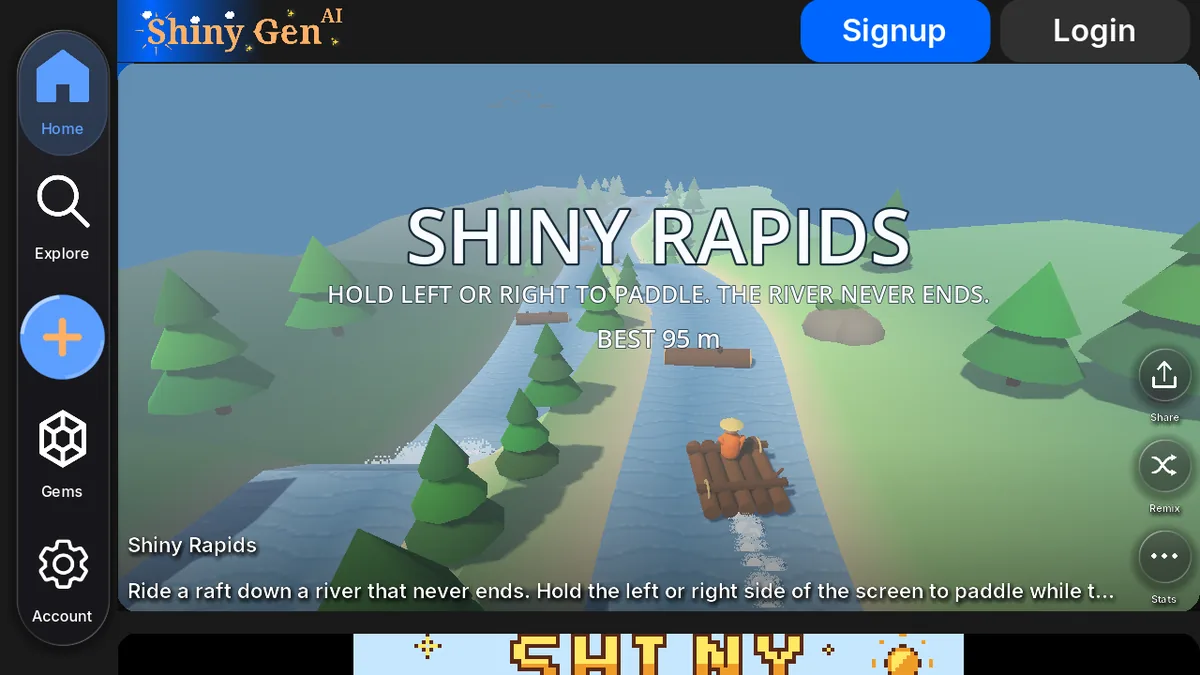
Go to shinygen.ai/play. The home feed plays games from our catalogue, and most of them are Godot games: you can play one, look at its code, or remix it into your own copy. Making a game needs an account, so sign up or log in from the top of the page.
2. Start a new game and pick the Godot engine
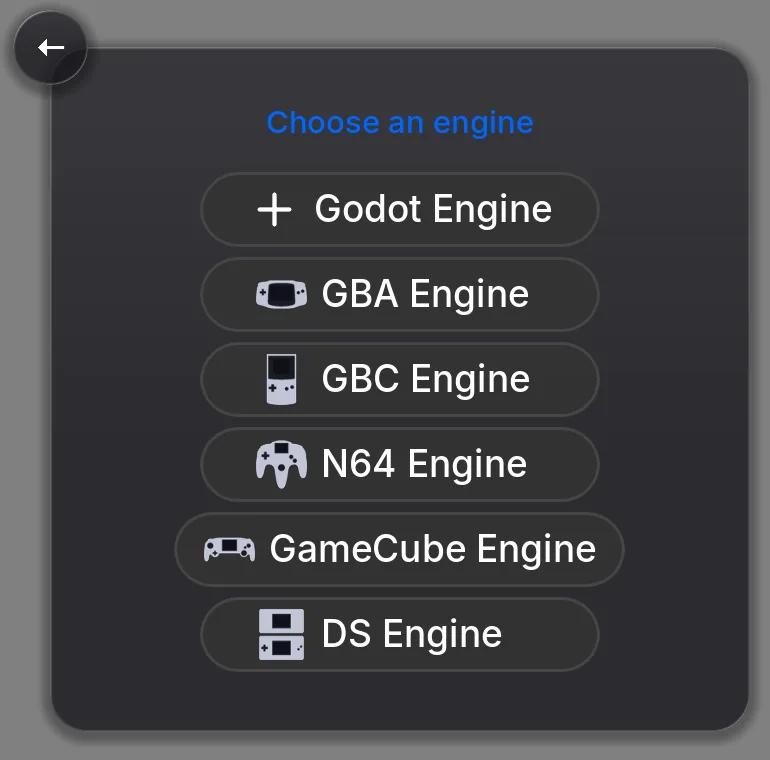
Press the + button. Under In-app agent, choose New ("Start a fresh game from scratch"). The next screen asks you to Choose an engine: pick Godot Engine.
The other five rows are engines we built for retro-style games (GBA, GBC, N64, GameCube and DS). They are a different post; for a Godot game, it is the first row. If you would rather start from something that already works, choose Remix instead of New and pick one of our games.
A new Godot game opens in the editor. It starts empty, on purpose: the agent builds what you describe rather than editing a template you did not ask for.
3. Describe the game
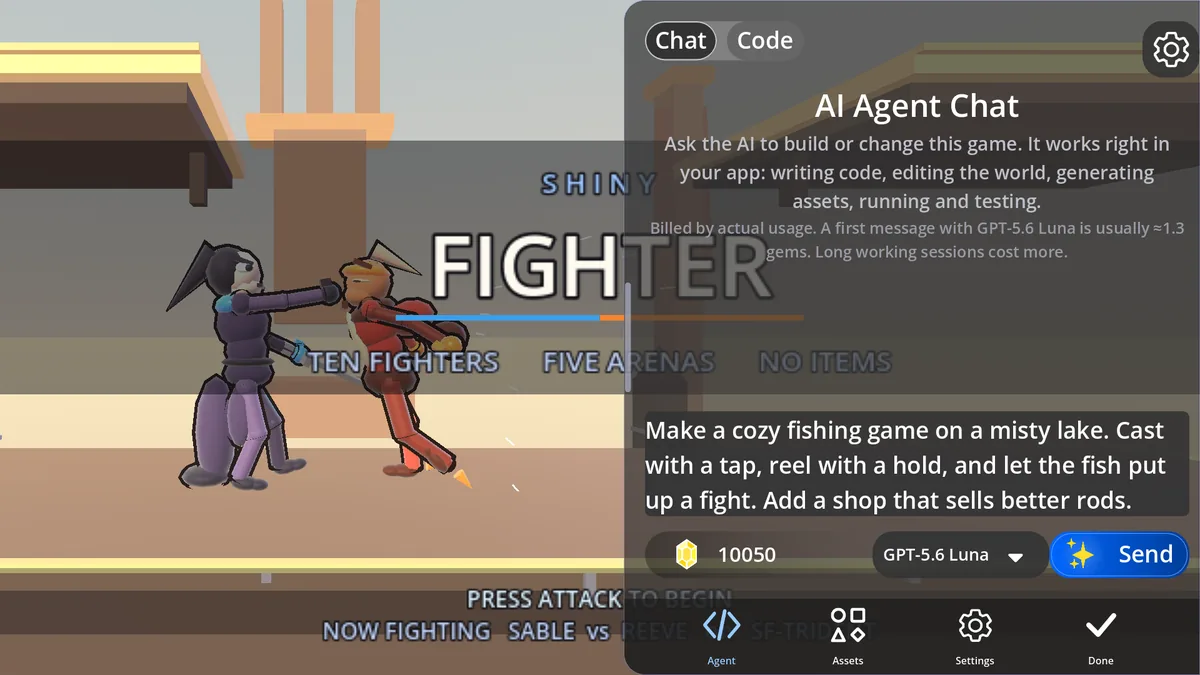
Open the Agent tab at the bottom of the editor. Its Chat view is where you talk to the agent. Type what you want in plain language. A useful first message says:
- What kind of game it is and what the player does.
- The controls (tap, drag, arrow keys, a gamepad).
- The goal, and how a round ends or scores.
- The look, if you care: low-poly 3D, pixel art, a color palette.
For example: "Make a small 3D platformer. A fox jumps between floating islands and collects gems. Arrow keys or the on-screen stick to move, space or A to jump. Falling off resets you to the last island. Show the gem count and a timer."
The button beside the composer picks the model, and the screen tells you roughly what a message costs with it. The built-in agent is billed by actual usage in gems, so a long working session costs more than a quick fix.
4. Watch the agent build it and test it
Press Send and watch the game take shape in the same tab. The agent does not just write code and hope. Each round it:
- Writes or edits the GDScript for your game.
- Runs it and reads any runtime errors, with line numbers.
- Takes screenshots to check what is actually on screen.
- Presses the controls to play what it built, including several inputs at once.
- Fixes what is broken and goes again.
It can also make the game's assets when your idea needs them: images and sprites, 3D models, sprite animations, and sound effects and music as editable scores. Generating assets spends gems; the agent tells you what it spent.
5. Change it by talking to it
When the first version runs, keep going in the same chat. Small, specific requests work best:
- "Make the jump higher and the fall a little slower."
- "Add a second level with moving platforms."
- "The timer keeps running after I win. Stop it on the win screen."
If something looks wrong, say what you saw rather than guessing at the cause. The agent can reproduce it by playing the game, then fix it. You can stop it at any point, play the game yourself, and come back.
6. Read and edit the GDScript yourself
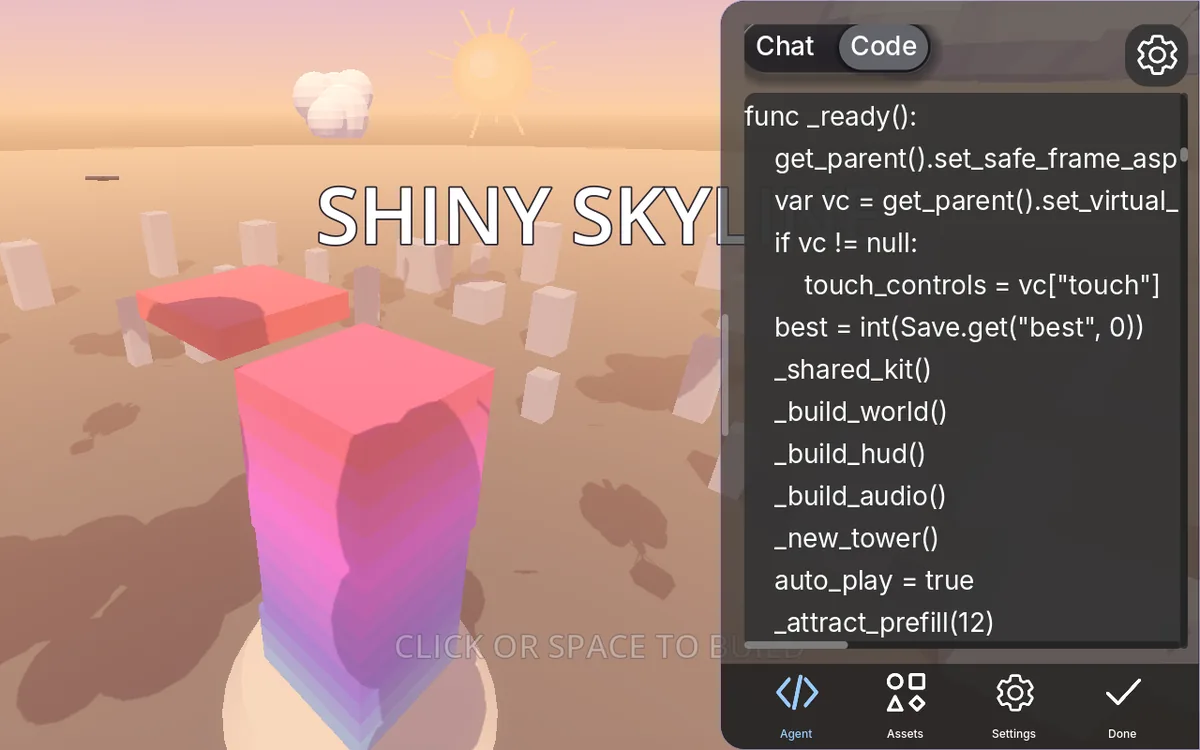
Switch the Agent tab from Chat to Code to see the game's script. It is GDScript, the same language you would write in the Godot editor, using Godot's nodes and the usual entry points: extends Node3D, func _ready(), func _process(delta).
You can read it to learn how the game works, change a number and run it again, or write whole functions by hand. Editing code yourself costs nothing. You can also ask the agent to explain a function before you touch it.
7. Share it, or take it with you
Press Share to get a link anyone can open in a browser. You choose whether people can only play it (Play Only) or also make their own copy (Play and Duplicate). Sharing is free.
To take a game with you, the web app has Share, then Export for the web (not in the iPhone, iPad or Android apps yet): a zip with an index.html and the game pack that you can upload to itch.io or any web host. An exported game makes no calls to Shiny Gen and plays offline once loaded. Exporting needs any one purchase, from a $2.99 starter pack.
You own what you make and can sell it; Shiny Gen takes no revenue share (Terms of Service, section 4).
How this differs from adding AI to desktop Godot
Shiny Gen writes real GDScript on the Godot engine, so what you learn here carries over. But it is not the desktop editor with a chat box bolted on, and the differences matter:
- It runs on our sandboxed fork of Godot. The code is real GDScript you can read and copy, but the stock Godot editor cannot open a Shiny Gen project, and there is no project download yet.
- No native builds yet. Games play inside Shiny Gen (in the browser and the apps), by link, or as a web export (which needs any one purchase, from $2.99). Shiny Gen does not make Windows, macOS, Steam or app-store builds of your game.
- Multiplayer stays inside Shiny Gen. Games can be multiplayer by link or room code, but a game you take out of Shiny Gen as a web zip plays solo for now.
What you get in exchange:
- Nothing to install, on any device, including phones and tablets.
- Art, 3D, animation and sound in the same project, made by the same agent.
- An agent that plays its own game, so many bugs are found and fixed before you see them.
- A link to share the moment it runs.
When to use desktop Godot instead
Use the Godot editor on your computer (with or without an AI assistant) if you:
- need a native build of your game today, for Steam, an app store or a desktop download;
- need the project in the stock editor, with its addons, C#, or your own engine build;
- are working on a large project with a team and version control.
What it costs
Making, playing and sharing games is free, and so is editing code and assets by hand. AI generation and the built-in agent use gems, and new accounts start with free gems. Any one purchase, from a $2.99 starter pack, also unlocks exporting your games as files. The full list is on the pricing page.
If you already pay for Claude or ChatGPT, you can connect it to Shiny Gen instead of using the built-in agent; the code it writes costs no gems. That is the next post.
FAQ
Does Godot have AI built in?
No. The Godot editor does not ship with an AI assistant. You can add one with an editor plugin, use a general coding assistant on a desktop project, or use a tool built on Godot such as Shiny Gen, which runs the engine and an AI agent together in the browser.
Is it really Godot and GDScript?
Yes. Shiny Gen runs a fork of the Godot engine compiled to WebAssembly with a WebGPU renderer, and games are written in GDScript. The project runs on our sandboxed fork, so the stock Godot editor cannot open it.
Can I open my Shiny Gen game in the Godot editor?
Not as a project. You can read and copy the GDScript from the Code view, but there is no project download yet, and the code is written for Shiny Gen's sandboxed fork.
Can I make a Godot game on my phone?
Yes. The Shiny Gen app on iPhone, iPad and Android has the same editor and agent, and mobile browsers work too.
Is it free?
Making, playing and sharing are free. AI generation and the built-in agent use gems, and new accounts get free gems. Exporting a game as a file needs any one purchase, from $2.99.
Can I sell a game I made?
Yes. You own what you make, and Shiny Gen takes no revenue share. A common route is to export it for the web and sell it on itch.io; exporting needs any one purchase, from $2.99.