How to make a game with AI on your phone (iPhone, iPad and Android)
To make a game with AI on your phone, install Shiny Gen from the App Store (iPhone and iPad) or Google Play (Android), or open shinygen.ai/play in your phone's browser. Press +, choose New, pick an engine, and describe the game you want. Its AI agent writes the game, plays it to find bugs and fixes them, and you play the result right there with on-screen touch controls. Share it with a link anyone can open.
This guide walks through it step by step on a phone, then covers tablets and handhelds, what kinds of games work well, and the honest limits.
What you need
- An iPhone, iPad or Android phone or tablet, with the Shiny Gen app from the App Store or Google Play. A modern mobile browser works too, at shinygen.ai/play.
- A free Shiny Gen account. New accounts start with free gems, which is what the AI spends.
There is no engine or SDK to install. The game engine is inside the app.
Step by step
1. Get the app and look around
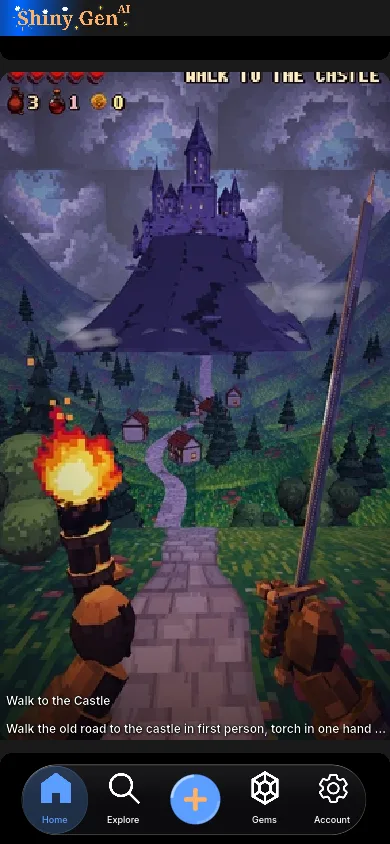
Open the app and you land on the home feed: games from our catalogue that play as you scroll, with no account needed. Swipe up for the next one. The bar along the bottom has Home, Explore (the catalogue, with a section for each engine), the + button that starts a game, Gems, and Account.
Making a game needs an account: when you press + or New, the app asks you to sign up or log in. The same account works in the app on every device and in the browser, and your games are saved to it, so a game you start on your phone is there on your tablet or computer.
2. Start a new game and choose an engine
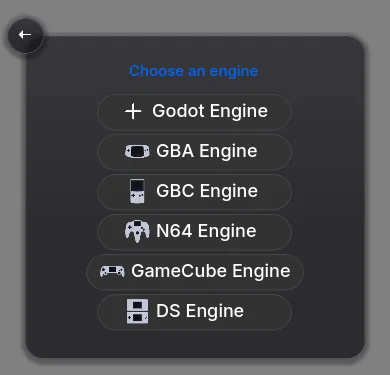
Press +. Under In-app agent, choose New ("Start a fresh game from scratch"). The next screen asks you to Choose an engine:
- Godot Engine for a modern 2D or 3D game, written in real GDScript.
- GBA Engine, GBC Engine, N64 Engine, GameCube Engine or DS Engine for a retro-style game that compiles to a real file you can download.
If you are not sure, pick Godot. If you would rather start from something that already works, choose Remix instead of New and pick one of our games to make your own copy.
A new game opens in the editor. It starts empty on purpose, so the agent builds what you describe rather than editing a template you did not ask for.
3. Describe the game to the agent
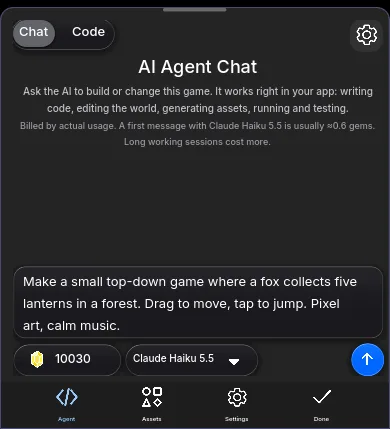
The editor's bar along the bottom has Agent, Assets, Settings and Done. Open Agent and type into its Chat view. On a phone held upright, the chat takes the lower part of the screen and your game stays above it, so you can watch the game change while you talk.
A small screen rewards a short, specific first message. Say what kind of game it is, what the player does, how they control it, and how it ends. Write the controls for a phone: tap, drag, swipe, an on-screen stick, or tilting the phone.
For example: "Make a small top-down game where a fox collects five lanterns in a forest. Drag to move, tap to jump. Pixel art, calm music."
A phone has one thing a keyboard does not: a camera. Tap the photo button beside Send to attach a picture from your library or take one, and the agent uses it as a reference. Sketch a level on paper, photograph your dog to turn into the hero, or show it a screenshot of a style you like. One photo goes with each message.
The button beside the composer picks the model. The built-in agent is billed in gems by actual usage, so a long session costs more than a quick fix.
4. Let it build, test and fix the game
Press Send. The agent writes the code, then plays the game it made: it runs it, takes screenshots, presses the controls and reads the errors, then fixes what is broken and goes again.
It can also make the game's art and sound when your idea needs them: images and sprites, 3D models, sprite animations, and sound effects and music as editable scores. Generating assets spends gems, and the agent tells you what it spent.
5. Play it with touch controls
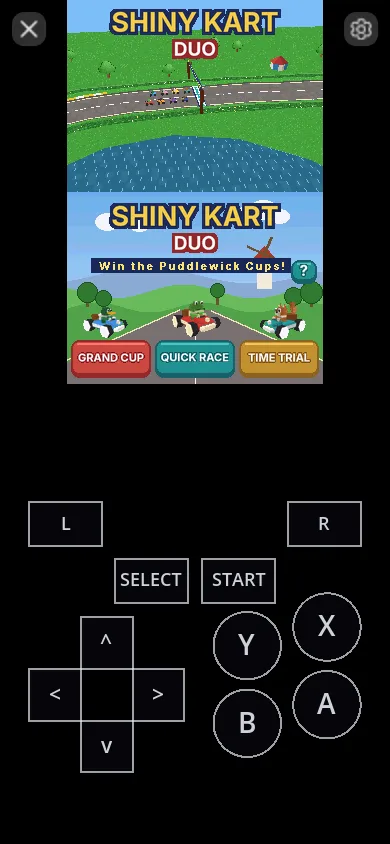
The game plays right in the editor and from its card in your games. On a phone the controls are on screen. A Godot game gets a virtual joystick and buttons; a retro game gets the console's own buttons, such as a D-pad with A and B, drawn on screen. Phone tilt works as a control on iPhone and Android when a game uses it, and a game controller works too, with buttons you can remap in the controller settings.
When something feels wrong, say what you saw in the same chat: "The fox slides after I let go", "Make the lanterns easier to see." The agent can reproduce it by playing the game, then fix it.
6. Change the art and sound by asking
You do not need a desktop art program. Ask the agent for a new sprite, background, 3D model or tune, or open the built-in editors: the image editor makes and edits images and sprites by prompt or by hand, and music and sound effects come out as scores you can keep editing. Editing by hand costs nothing; AI generation spends gems.
7. Share it with a link
Press Share. Choose Play Only to let people play it, or Play and Duplicate to also let them make their own copy, and you get a Shareable Link. Anyone can open it in a browser on a phone or computer, with nothing to install. Sharing is free.
If your game is multiplayer, the host chooses Play Online in the game and gets a link and a short join code to send. Friends open the link, or type the code under Account, Multiplayer, Join with a Code. The Shiny Monsters games on GBC, GBA and DS can trade and battle monsters with each other over the internet.
8. Take a retro game's file with you (iPhone and iPad)
A game made on one of the retro engines can be downloaded as a file you own: a ROM for GBA, GBC and N64, a .dol for GameCube, or a .nds for DS. Exporting the file needs any one purchase, from a $2.99 starter pack.
In the iPhone and iPad app, press Share, then the export button, and the file goes to the Save to Files sheet. The Android app cannot save the file yet: open the game at shinygen.ai in a browser on your phone or computer to download it, which needs the same one purchase.
Exporting a Godot game for the web (a zip you can host anywhere) is in the web app only, at shinygen.ai/play in a browser, not in the iPhone, iPad or Android apps; it also needs any one purchase, from $2.99.
Tablets and handhelds
- iPad and Android tablets run the same app as phones, with more room for the game and the chat.
- Retroid-class Android handhelds run the Android app with their built-in controls, so a game you made plays on real buttons.
- Dual-screen handhelds: DS games use both screens.
What kinds of games work well
Games that are good to play on a phone are good to make on one:
- Tap and swipe games: arcade, puzzle and one-thumb games.
- Top-down adventures and RPGs, with a stick or a D-pad.
- Platformers and racers, with on-screen buttons or tilt.
- Retro games on the GBA, GBC, N64, GameCube and DS engines, which come with their console's buttons on screen.
The catalogue shows the range, and every game in it is free to play. Remix any of them into your own copy and change it with the agent; it is often faster than starting blank.
Limits
- The screen is small. Long code is easier to read on a tablet or computer, and the same account picks up where you left off there.
- Web export is not in the apps. Exporting a Godot game for the web is in the web app only, at shinygen.ai/play in a browser; it needs any one purchase, from $2.99.
- The Android app cannot save a retro file yet. ROM,
.doland.ndsdownloads work in the iPhone and iPad app (Save to Files) and in a browser; on Android, use a browser. Exporting needs any one purchase, from $2.99. - No native builds of your game. Your game plays in Shiny Gen, by link, or as a web export or retro file (exporting needs any one purchase, from $2.99). Shiny Gen does not make an iPhone, Android, Windows or Steam build of the game you made.
- An outside AI hosted from your phone needs the app open. If you connect Claude or ChatGPT over MCP by pressing Host External Agent, the app stays open while it works. To let it work with your phone put away, give it an agent session link instead (press +, then Link under Bring your own agent): your AI runs Shiny Gen in its own browser, and nothing has to stay open on your side. The built-in agent needs neither step.
- Multiplayer stays inside Shiny Gen. A game exported for the web (which needs any one purchase, from $2.99) plays solo for now.
FAQ
Can I make a game on my phone with AI?
Yes. Install Shiny Gen from the App Store or Google Play, press +, choose New, pick an engine and describe the game. The AI agent builds it, plays it to test it, and fixes what is broken, and you play it on the same screen with touch controls.
Does it work on iPhone, iPad and Android?
Yes. The app is on the App Store for iPhone and iPad and on Google Play for Android phones, tablets and Retroid-class handhelds. Mobile browsers work too, at shinygen.ai/play.
Do I need a computer?
No. You can make, play and share a game entirely on a phone. A bigger screen helps for reading long code. Exporting a Godot game for the web is in the web app at shinygen.ai/play in a browser, not in the apps, and it needs any one purchase, from $2.99.
Do I need to know how to code?
No. You describe the game and the agent writes and tests the code. The code is there to read and edit if you want to.
Can I show the AI a photo?
Yes. In the iPhone, iPad and Android apps, tap the photo button in the agent chat to attach a picture from your library or take one with the camera. The agent uses it as a reference for the art, a character or a level. Photos are not in the web app yet.
Can I play my game with a controller?
Yes. Games have on-screen touch controls, and a game controller works too, with buttons you can remap. Retroid-class handhelds use their built-in controls.
Can I use the same account on my phone and my computer?
Yes. Your games are saved to your account, so you can start on a phone and keep going on a tablet, another phone or a browser.
Is it free?
Making, playing and sharing games is free. AI generation and the built-in agent use gems, and new accounts get free gems. Exporting a game as a file needs any one purchase, from a $2.99 starter pack. The full list is on the pricing page.