How to make an iPhone game with AI (on your iPhone, no Mac or Xcode)
Also in: Español · Deutsch · Français · Português · Italiano · Nederlands · Svenska · Norsk · Bahasa Indonesia · Türkçe · Polski · Tiếng Việt · Русский · 日本語 · 한국어 · 繁體中文
To make an iPhone game with AI, install the free Shiny Gen app from the App Store (or open shinygen.ai/play in Safari), press +, choose New, pick an engine, and describe the game you want. Its AI agent writes the game, plays it to find bugs and fixes them, and you play the result on the same iPhone with touch controls, tilt or a game controller. Share it with a link anyone can open in a browser. You do not need a Mac, Xcode or any code; making, playing and sharing are free, and AI generation uses gems, with free gems for new accounts.
So this is a game you make on your iPhone and play on iPhones: your own game, built by talking to an AI, with the game engine inside the app. It is not an App Store app of its own: Shiny Gen does not build an iPhone app of the game you made, and the limits below say what you can do instead.
This guide walks through it step by step on an iPhone, then covers which engine to pick, the iPad and Mac, the honest limits, and the questions people ask most. For Android phones too, see making a game with AI on your phone.
What you need
- An iPhone or iPad with iOS 15 or later, and the free Shiny Gen app ("Shiny Gen: AI Game Maker") from the App Store. Safari works too, at shinygen.ai/play.
- A free Shiny Gen account. New accounts start with free gems, which is what the AI spends.
There is no engine, SDK or Xcode to install, and no Mac or developer account. The game engine is inside the app.
Step by step
1. Install the app and look around
Open the app and you land on the home feed: games from our catalogue that play as you scroll, with no account needed. Swipe up for the next one. The bar along the bottom has Home, Explore (the catalogue, with a section for each engine), the + button that starts a game, Gems, and Account.
Making a game needs an account: when you press + or New, the app asks you to sign up or log in. The same account works in the app on every device and in a browser, and your games are saved to it, so a game you start on your iPhone is there on your iPad or computer.
2. Start a new game and pick an engine
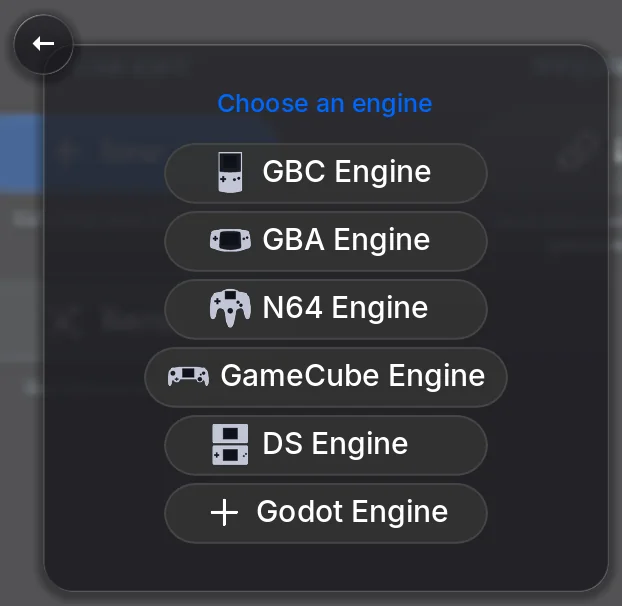
Press +. Under In-app agent, choose New. The next screen asks you to Choose an engine. (On a brand-new account the app may first ask what kind of game you want to make; answer it or press Skip.)
- Godot Engine for a modern 2D or 3D game, written in real GDScript. Pick it for a game built around taps, swipes and tilt.
- GBA Engine, GBC Engine, N64 Engine, GameCube Engine or DS Engine for a retro-style game with that console's buttons on screen, which compiles to a real file you can download.
If you would rather start from something that already works, choose Remix instead of New and pick one of our games to make your own copy.
3. Describe the game for a touch screen
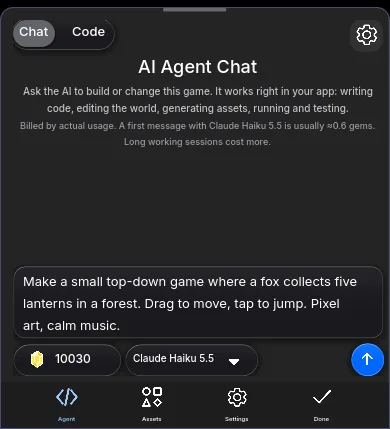
The editor's bar along the bottom has Agent, Assets, Settings and Done. Open Agent and type into its Chat view. With the iPhone held upright, the chat takes the lower part of the screen and your game stays above it, so you watch the game change while you talk.
Say what kind of game it is, what the player does, how they control it, and how it ends, and write the controls for an iPhone: tap, drag, swipe, an on-screen stick, or tilting the phone.
For example: "Make a game where a paper boat floats down a river. Tilt the phone to steer around rocks, tap to jump over logs, and collect stars. Bright paper-craft look, calm music. Three lives, then show the best score."
Your iPhone has a camera, and the agent can use it. Tap the photo button beside Send to attach a picture from your library or take one: a level sketched on paper, your cat as the hero, or a screenshot of a style you like. One photo goes with each message.
The button beside the composer picks the model. The built-in agent is billed in gems by actual usage.
4. Let it build, play and fix the game
Press Send. The agent writes the code, then plays the game it made: it runs it, takes screenshots, presses the controls and reads the errors, then fixes what is broken and goes again.
It also makes the game's art and sound when your idea needs them: images and sprites, 3D models, sprite animations, and sound effects and music as editable scores. Generating assets spends gems, and the agent tells you what it spent.
When something feels wrong, say what you saw in the same chat: "The boat turns too fast when I tilt", "Make the stars easier to see." The agent can reproduce it by playing the game, then fix it. The code is there to read in the Code view, and editing it by hand costs nothing.
5. Play it on your iPhone
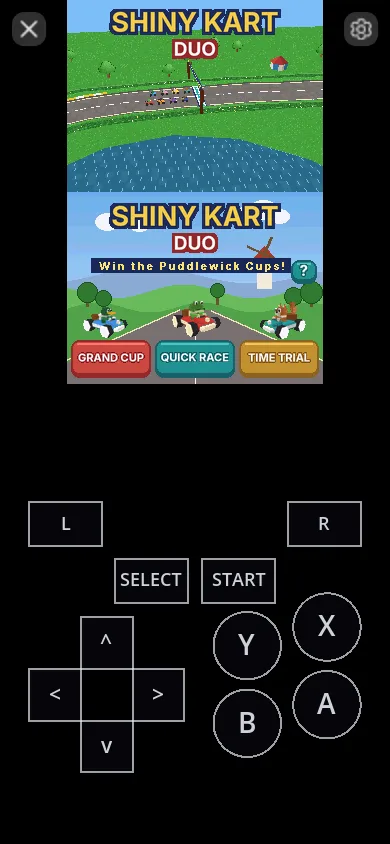
The game plays right in the editor and from its card in your games. The controls are on screen: a Godot game gets a virtual joystick and buttons, and a retro game gets its console's own buttons, such as a D-pad with A and B. Tilt works as a control on iPhone when a game uses it, and a game controller works too, with buttons you can remap in the controller settings.
6. Share it with a link
Press Share. Choose Play Only to let people play it, or Play and Duplicate to also let them make their own copy, and you get a Shareable Link. Send it in Messages or anywhere else: it opens in a browser on any phone or computer, with nothing to install. Sharing is free.
If your game is multiplayer, the host chooses Play Online in the game and gets a link and a short join code to send. Friends open the link, or type the code under Account, Multiplayer, Join with a Code.
7. Keep a retro game as a file on your iPhone
A game made on one of the retro engines can be downloaded as a file you own: a ROM for GBA, GBC and N64, a .dol for GameCube, or a .nds for DS. Exporting the file costs $25 per game, or comes with a plan; it unlocks that game for unlimited re-exports.
In the iPhone and iPad app, press Share, then the export button (for example Export .gba ROM). Exporting costs $25 per game, or comes with a plan; once the game's export is covered, the Save to Files sheet opens so you can keep the file in Files. A .gba or .gbc ROM plays in an emulator app such as Delta. N64 ROMs are made for a real N64 with a flash cart, and in an emulator they need ares or another low-level N64 emulator. The guides for GBA and GBC cover flash carts and real hardware.
Which engine for an iPhone game
- Tap, swipe and tilt games (arcade, puzzle, one-thumb, endless runners): the Godot engine, with a virtual joystick and buttons, tilt when the game uses it, and no retro limits.
- Top-down adventures, RPGs and platformers with a D-pad: GBC or GBA, which come with the console's buttons on screen and give you a real ROM.
- 3D racing, flying and platformers: Godot for a modern look, or N64 for a low-poly retro look with an on-screen stick.
- Two-screen games with touch: DS, which stacks both screens on an iPhone held upright and takes your finger as the stylus.
The catalogue shows the range, and every game in it is free to play. Remixing one is often faster than starting blank.
On iPad and Mac
- iPad: the same app as the iPhone, with more room for the game and the chat, and the same photo button and controls.
- Mac: on a Mac with Apple silicon, the iPad app also installs from the Mac App Store. Any Mac can also use shinygen.ai/play in a browser, which is the desktop version of Shiny Gen, with nothing to install.
Your games follow your account, so you can start on the iPhone on the bus and keep going on a bigger screen at home.
Limits
- No App Store build of your game. Shiny Gen does not make an iPhone, Android, Windows or Steam app of the game you made. Your game plays in Shiny Gen, by link in any browser, or as a web export or retro file (exporting costs $25 per game, or comes with a plan).
- Web export is not in the apps. Exporting a Godot game for the web (a zip you can host anywhere, such as itch.io) is in the web app at shinygen.ai/play in a browser, not in the iPhone app; it costs $25 per game, or comes with a plan.
- The screen is small. Long code is easier to read on an iPad or a computer, and the same account picks up where you left off there.
- An outside AI hosted from your iPhone needs the app open. If you connect Claude or ChatGPT over MCP by pressing Host External Agent, the app stays open while it works. To let it work with your phone put away, give it an agent session link instead (press +, then Link under Bring your own agent). The built-in agent needs neither step.
- Multiplayer stays inside Shiny Gen. A game exported for the web (which costs $25 per game, or comes with a plan) plays solo for now.
FAQ
Can I make an iPhone game with AI?
Yes. Install Shiny Gen from the App Store, press +, choose New, pick an engine and describe the game. The AI agent builds it, plays it to test it, and fixes what is broken, and you play it on your iPhone with touch controls, tilt or a controller.
Do I need a Mac or Xcode?
No. Everything happens in the app on your iPhone: describing the game, building it, testing it, playing it and sharing it. There is no Xcode, SDK or developer account involved.
Can I put my game on the App Store?
Not as an app of its own. Shiny Gen does not make an iPhone app build of a game you made. You can share it with a link that plays in any browser, export a Godot game for the web to host on a site such as itch.io, or export a retro game as a ROM file; exporting costs $25 per game, or comes with a plan.
Do the people I share it with need the app?
No. A share link opens the game in a browser on a phone or computer, with nothing to install.
Do I need to know how to code?
No. You describe the game and the agent writes and tests the code. The code is there to read and edit if you want to, and editing it by hand costs nothing.
Can I show the AI a photo?
Yes. In the iPhone and iPad app, tap the photo button in the agent chat to attach a picture from your library or take one with the camera. The agent uses it as a reference for the art, a character or a level. Photos are not in the web app yet.
Which iPhones does it work on?
The app needs iOS 15 or later, on iPhone and iPad. On a Mac with Apple silicon, the iPad app also installs from the Mac App Store.
Is it free?
Making, playing and sharing games is free. AI generation and the built-in agent use gems, and new accounts get free gems. Exporting a game as a file costs $25 per game, or comes with a plan. The full list is on the pricing page.